
Automations
Automated flows with triggers, conditions and actions: NotifyHub works for you when something happens.
Key points
- Start from a clear trigger: new contact, message received, tag added, timer, webhook, failed delivery, conversation status change or booking created.
- Disable an automation instead of deleting it if you only want to pause it: the run counter stays available.
- Check the run count regularly: an automation that never runs probably has the wrong trigger or condition.
What this page is for
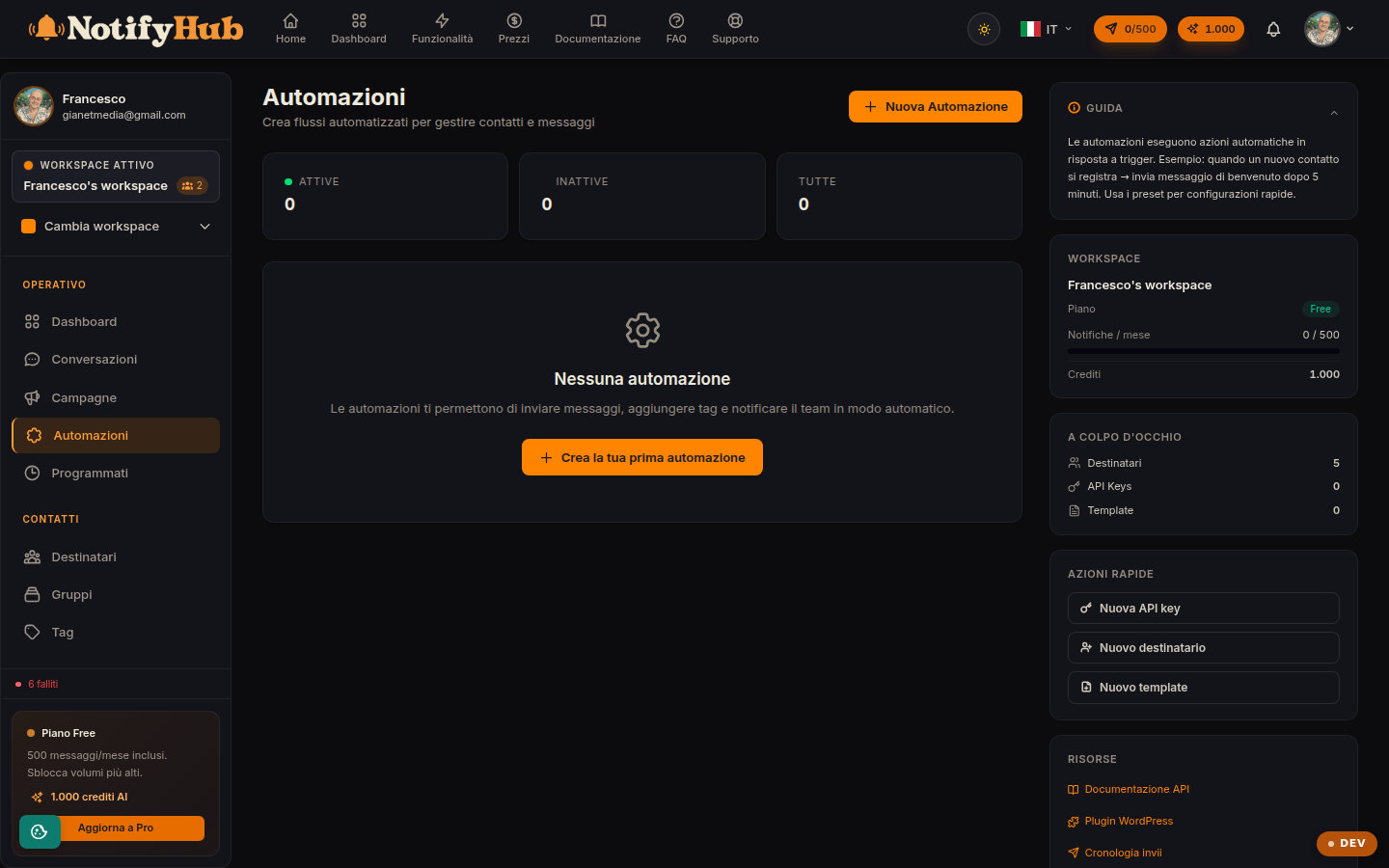
Automations perform actions when an event occurs, with no manual intervention: welcoming a new contact, replying outside business hours, alerting the team when a delivery fails, sending a follow-up after a timer. The list shows each automation with its trigger, number of steps, runs and active/inactive status.
Available triggers
An automation starts from one of these events: new contact created, message received, tag added to a contact, timer (time-based), webhook received from an external system, failed delivery, conversation status change and booking created. On top of the trigger you add conditions that filter the cases in which the flow should actually run.
Building the flow
When creating one you define the steps in sequence: sending messages (with templates), waits, tag assignments and other chained actions. The flow is saved and enabled with its dedicated switch; from the list you can edit it, enable/disable it or delete it. It is best to test the automation on a test contact before enabling it for everyone.